Record it. Trim it. Share it.
Record → Edit
Simplified recording walkthrough
What you get
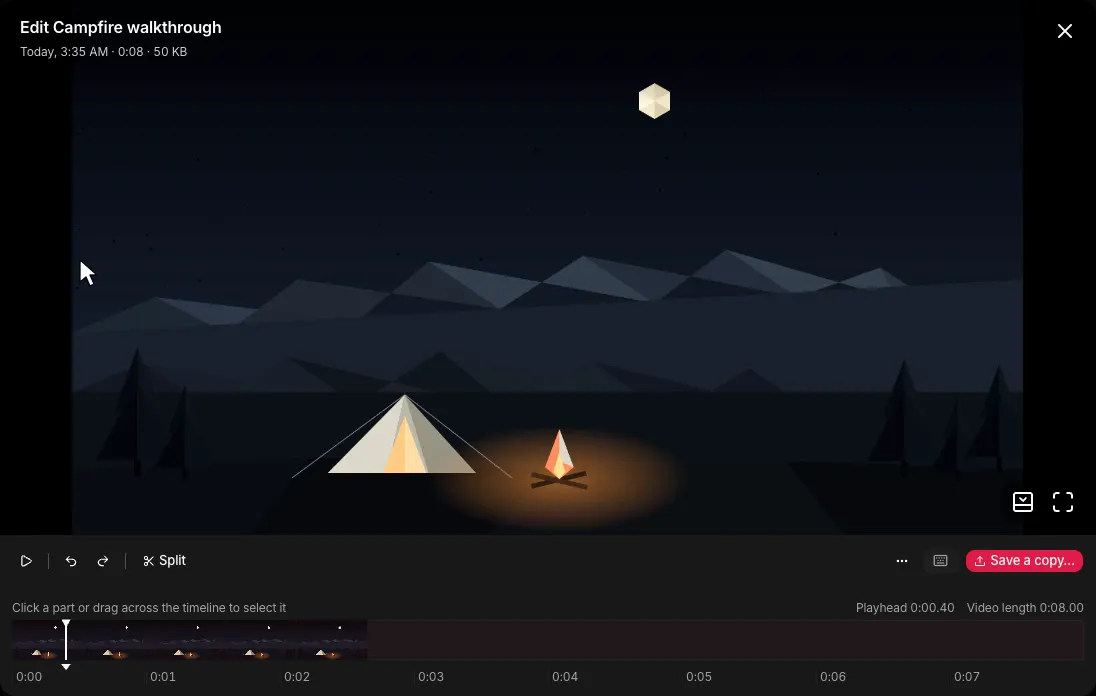
Watch it, cut it
Play, rename or cut recordings. Cuts go to a new file.
Your files stay yours
Plain MP4s in Movies → RecordStuff, or any folder you pick.
Keeps what it can
If a recording fails, it tries to save what was written.
English and 繁體中文
Switch any time, even while recording.
- OutputH.264 / AAC MP4
- ResolutionUp to source
- Frame rate30 or 60 fps
- Audio256 kbps target
- Free and MIT licensed.
- Verified on macOS 26, Apple silicon.
Ready in five steps
- DownloadDownload the DMG for your Mac.
- Drag to ApplicationsOpen the DMG and drag RecordStuff into the Applications folder.
- OpenOpen RecordStuff from Applications and allow it to launch.
- RecordClick the menu bar icon and choose Start recording, or press ⇧⌘1. Choose Stop the same way to save.